How to Stop Buffering When Streaming on TV
TL;DR Summary: Improve Your Streaming Quality with These 12 Tips Enhance your streaming experience by optimizing your device, home network, and ISP plan. Upgrade to a modern streaming device, use Ethernet connections for stability, and adjust router placement for better Wi-Fi coverage. Understand ISP factors like speed, capacity limits, interference, and network monitoring to troubleshoot issues effectively. Read on for expert advice on boosting your streaming quality.
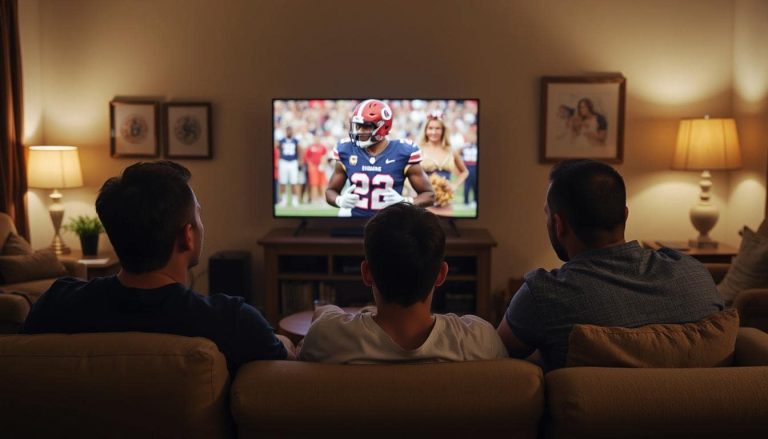
Streaming TV can be awesome, but it’s also more sensitive than cable ever was. In the CUE training call, they explained it pretty clearly: your experience depends on a mix of your device, your home network, and your internet service provider — and you only control some of that.
I run Ethernet to as many devices as I can (especially the main TV setups). It’s consistently faster and more stable than Wi-Fi, and it cuts down on the weird “random buffering” moments. I know not everyone can do that, but if you can, I highly suggest doing it. It’s great.
The “3 Buckets” That Control Streaming Quality
- Your streaming device (power + age + app overhead)
- Your home network (Wi-Fi interference, router placement, number of devices)
- Your ISP plan (speed, capacity/limits, and filtering/monitoring)
1. Use a streaming device that’s built for today’s apps (not 2019)
The training call made a blunt point: if you bought the cheapest device available, it may have worked earlier… but newer apps demand more resources over time.
- Higher-end devices tend to handle app updates better (more headroom).
- If your device feels sluggish, crashes, or buffers more lately, don’t assume it’s the service first.
2. Use Ethernet when you can: it’s the simplest “big win”
The call pointed out that when you can plug a device into Ethernet (instead of Wi-Fi), performance is typically much better.
- Use Ethernet for your main TV streaming device if it supports it.
- If your device doesn’t support Ethernet, consider a model that does (or use a mesh system with a node near the TV).
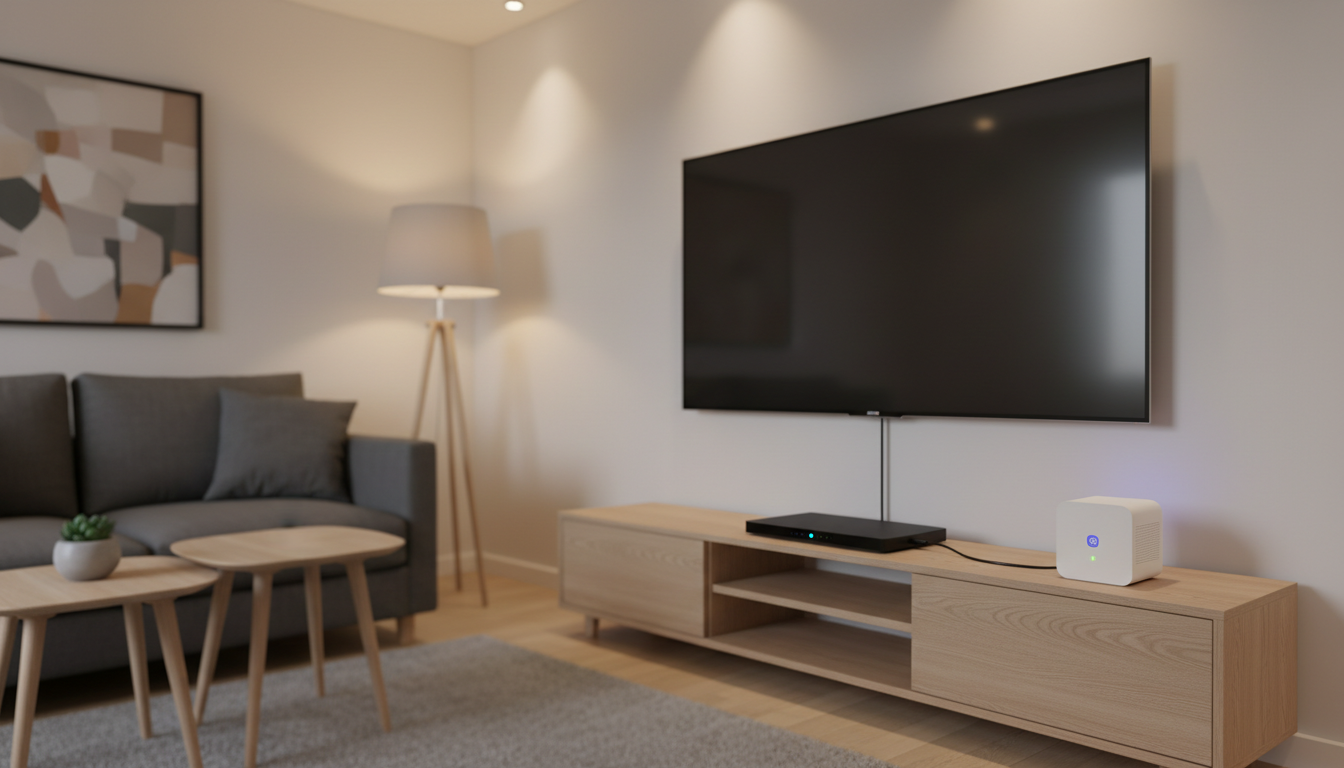
3. Put your router closer to the TV: distance matters more than you think
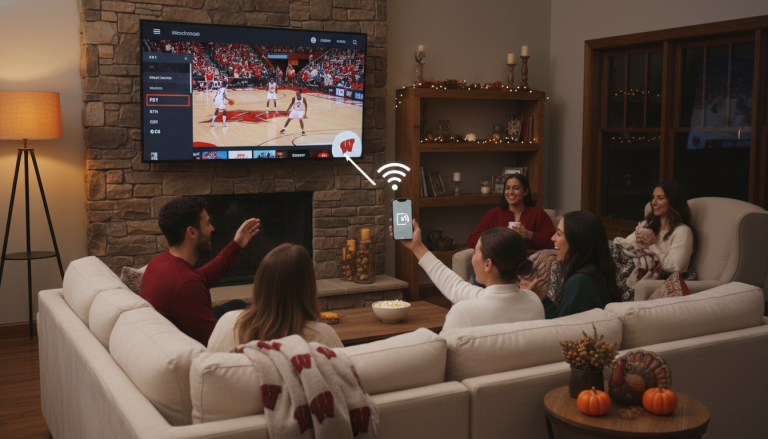
Wi-Fi isn’t just “Wi-Fi.” The call highlighted interference and the reality that many homes have lots of Wi-Fi devices competing for airtime.
- Try moving your router closer to where you watch TV most.
- Or use a mesh node near the TV area.
4. Don’t only look at “speed” — learn the 4 ISP factors
They broke ISP issues into four factors: speed, capacity, interference, and network monitoring/filters.
- Speed: download and upload both matter (upload can impact channel changes).
- Capacity: your plan may slow down after a certain amount of usage (even if it’s marketed as “unlimited”).
- Interference: too many Wi-Fi devices and bad placement can hurt performance.
- Monitoring/filters: ISP “security” features can add overhead.
5. Check your contract for capacity limits: this is the sneaky one
This was one of the most important parts of the training: many providers market “unlimited,” but your contract fine print may define a monthly capacity allowance. If you notice the service getting worse near the end of your billing cycle, you may be hitting that limit.
- They mentioned cellular plans often having capacity allowances in the hundreds of GB per month, and gave an example of a 100GB hotspot plan getting burned through fast with TV usage.
- If you rely on hotspots or cellular home internet, this matters even more.
6. Reduce household competition: gaming and downloads are bandwidth bullies
The training call basically said what every parent already knows: if someone is gaming or multiple people are streaming at once, it can crush performance for live TV.
- Pause big downloads during live TV.
- Schedule updates overnight.
- If buffering is “mysteriously” worse after school, you’re not imagining it.
7. Watch for neighborhood congestion (peak hours are real)
They gave a simple example: during the school year, internet quality can dip during after-school hours because the neighborhood’s shared network is busier.
- This is one reason residential internet can vary by time of day.
- Ethernet + better router placement helps you “win” inside your home, even if the neighborhood is busy.
8. Turn off ISP “security” filters if they’re slowing things down
The call specifically mentioned ISP monitoring tools (example: AT&T Fiber “ActiveArmor”) that can create overhead and slow performance.
- If your ISP has a security layer, try disabling it as a test.
- Reboot your modem/router after making changes.
9. Reboot your streaming device and let it rest
These are small electronics that generate heat and can get sluggish if they run nonstop. The training call explicitly recommended giving devices a rest and not leaving everything running 24/7.
- Weekly reboot is a simple routine.
- If the app is glitchy, clearing cache can help.
10. Exit the TV app when you’re done, don’t just turn off the TV
They gave very direct instructions: keep hitting “back” until you can exit the application. Otherwise it may keep running in the background, using internet and heating up the device all night.
- Back out of the app.
- Choose “Exit application” (if available).
- Then turn off the TV.
11. Know why Netflix/YouTube can “feel smoother” (CDNs)
The call explained that giant services use content delivery networks (multiple data centers closer to users). When a service runs from fewer data centers, distance and load spikes can matter more.
- This is more “how streaming works” than “something you did wrong.”
- Your best move is still: solid device + solid home network + adequate ISP plan.
12. When you need support, report issues like a technician
If you want faster help, give support the info that helps them narrow it down quickly. The call emphasized being clear and specific when reporting issues.
- Device model
- Wi-Fi vs Ethernet
- Speedtest results (download, upload, latency)
- What channel and what time the issue occurred
Bonus: My 5-Minute Streaming Tune-Up Checklist
- Reboot modem/router.
- Reboot the streaming device.
- If possible, plug the device into Ethernet.
- Run a speed test and check latency.
- Exit the app properly when you’re done watching.
FAQs About How to Boost Streaming Quality
Why does streaming get worse near the end of the month?
Because many “unlimited” plans have capacity limits buried in the contract fine print. Once you hit that threshold, your service can be deprioritized or slowed down.
Is Wi-Fi always bad for streaming TV?
No, but Wi-Fi is more sensitive to interference, distance, and the number of devices using it. Ethernet is usually the most stable option when you can use it.
Why do channel changes sometimes feel slow?
Channel changes involve both download and upload activity — you’re sending a request (upload) and pulling down a new stream (download). Upload and latency can matter more than people realize.
📄 Download a PDF of This Article