CUE Web Player App
TL;DR Summary: Elevate your CUE Broadcast Web Player experience by branding it with your logo and turning it into an app icon on your phone for easy access. Follow simple steps to add the CUE Web Player to your home screen, enhancing convenience and personalization. Dive into the article for detailed instructions and troubleshooting tips.
CUE has their web player, which is great, but there are two issues.
1. Branding is Missing
First, they didn’t brand it under their name. I mean, this is the URL:
https://cuebroadcast.sotalcloud.com/screen/TVClunky, right? Why didn’t they just use a sub-domain of cuebroadcast.com and iframe it? That is what I would have done.
2. The Icon is Missing
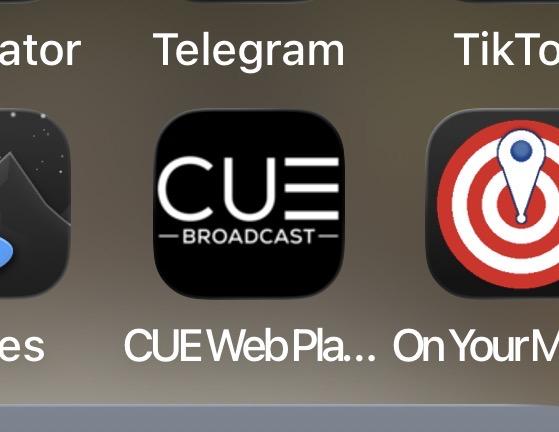
The second issue is the icon. When you turn it into a web app (directions below), you get just a generic icon that doesn’t have the CUE branding:

Lame, right? I’m visual, so show me the CUE logo there.
My Fix: My Version of the CUE Broadcast Web Player
This is mainly for my own use, but I iframed it here and when you create the web app on your phone, you get a CUE logo, like this:
Make the CUE Web Player an App Icon on Your Phone:
You can add the CUE Web Player to your home screen so it opens like an app with one tap — no App Store download needed.
iPhone / iPad (Safari)
- Open the CUE Web Player in Safari: https://cuewebplayer.tcstix.com/
- Tap the Share button (square with an up arrow).
- Scroll down and tap Add to Home Screen.
- (Optional) Rename it to CUE Web Player.
- Tap Add.
Tip: If you don’t see “Add to Home Screen,” scroll a bit further down the Share menu, or tap Edit Actions… and add it.
Android (Chrome)
- Open the CUE Web Player in Chrome: https://cuewebplayer.tcstix.com/
- Tap the 3-dot menu in the top-right corner.
- Tap Add to Home screen or Install app (the wording can vary).
- Confirm Add / Install.
Quick Troubleshooting
- Use the right browser: iPhone/iPad = Safari, Android = Chrome.
- If it opens in a normal browser tab: delete the shortcut and add it again.
- If audio won’t play: turn up volume while the player is open and make sure Silent Mode / Do Not Disturb isn’t blocking sound.
📄 Download a PDF of This Article